Sensory Overload on Steam Deck
Keep handheld sessions smooth, cool, and finite.
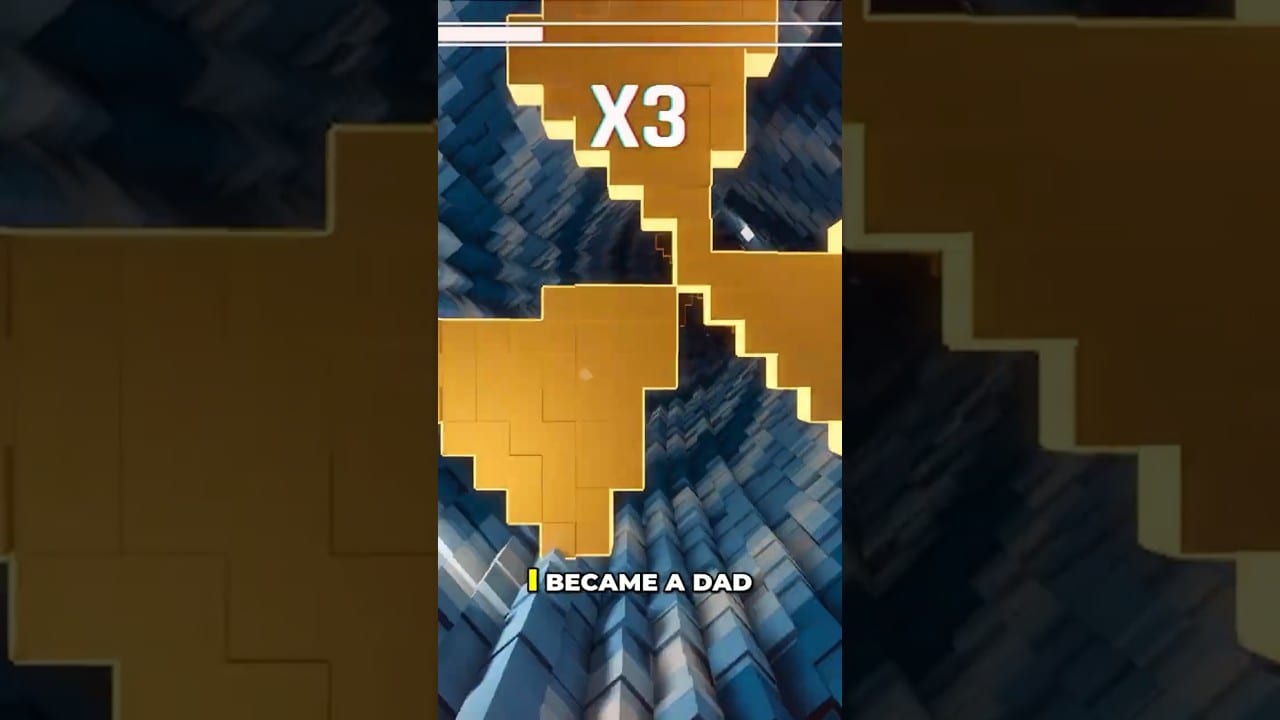
Sensory Overload on Steam Deck is a natural fit for short arcade bursts and a risky fit for long nausea marathons. Developer communications state the Deck is supported and tested. This guide covers practical handheld setup.
Setup baseline
- Install the demo or full game via Steam
- Confirm controls in-game match Controls
- Cap FPS to a stable number your Deck holds in-tunnel
- Consider 40/45/60 refresh strategies based on heat and battery
- Disable distracting system notifications during Ranked blocks
Comfort on a small screen
Handheld screens sit closer to your eyes, which can intensify perceived motion. Countermeasures:
- Play in a bright room
- Lower brightness if flicker bothers you, but keep environmental light on
- Use shorter sessions than on a monitor
- Follow Motion Sickness Tips aggressively
- Prefer Zen when testing new TDP profiles
Performance versus readability
A stable 40 FPS can feel better than an unstable 60 with hitching. Hitching during compression gates is a silent killer. If frames dip when walls breathe, lower settings before blaming timing.
Cross-check silicon expectations with System Requirements.
Deck-specific practice plan
- Commute bursts: Vertigo tap drills only
- Evening blocks: one Normal gimmick focus
- Weekend: limited Ranked after warm-ups (Ranked Mode)
Launch night on Deck
August 20, 2026 may bring patches and download congestion. Pre-download when possible, keep cooling clear, and do not debut brand-new sensitivity settings on your first full-game Ranked attempt.
Deck mastery is knowing when to dock, when to cap, and when to stop.
Deck carry case rule
If you cannot play without hunching over in a dark vehicle, you do not have a Deck problem — you have an environment problem. Wait until you can meet comfort checklist basics. The tunnel will still be in your library.
Deck + Accessibility
Handheld FOV and distance amplify motion issues. Before long Deck sessions:
- Disable speed lines if streaks trigger nausea
- Thicken outlines for smaller glyphs
- Prefer calmer crosshair colors
- Cap FPS for stability over max settings
Details: Accessibility Settings. Chronology: Patch Notes.
Deck controls reality
Stick flicks can match mouse micro-moves when deadzones are sane. Treat Deck as a first-class device, not a toy — but expect shorter continuous minutes than desktop. See Controls for binding habits and Practice Mode for isolating Deck-specific gates.
Deck comfort protocol
Sit farther back than impulse wants. Lights on. Fifteen/five timers by default. Hard stop still wins when friends watch. Pair with Comfort Checklist and Motion Sickness Tips.
Deck performance triage
If obstacles flicker or feel late, check thermal throttle and FPS stability before rewriting your skill story. System Requirements baselines still matter on handheld profiles.
Deck can be excellent for Sensory Overload. Deck can also be a nausea accelerator. Configure intentionally.
Deck launch-night plan
On August 20, verify Deck settings once, then stop tinkering mid-panic. Confirm Proton/SteamOS quirks via community notes linked from Official Links, keep comfort timers shorter than desktop, and prefer Normal validation before any Ranked flex on handheld. If the device overheats, that is a Tools failure, not a skill story — cool down, lower settings, retry.
Deck players who clear Vertigo cleanly with outlines on and speed lines off are not “less pure.” They are configured.
Carry a short Deck checklist in your case notes: distance, FPS cap, outlines, speed lines, stop timer. Five lines prevent hour-long regret.
Frequently Asked Questions
Quick answers for demo and launch questions.
Is Steam Deck officially supported?
Developer messaging around the demo states Steam Deck is supported and tested.
What FPS should I target?
Whatever you can hold stably. Stability beats peak numbers for this game’s readability.
Why do I get sicker on Deck than PC?
Closer screen distance and handheld motion often intensify vestibular conflict.