Sensory Overload System Requirements
Confirm Vulkan-ready hardware before launch night.
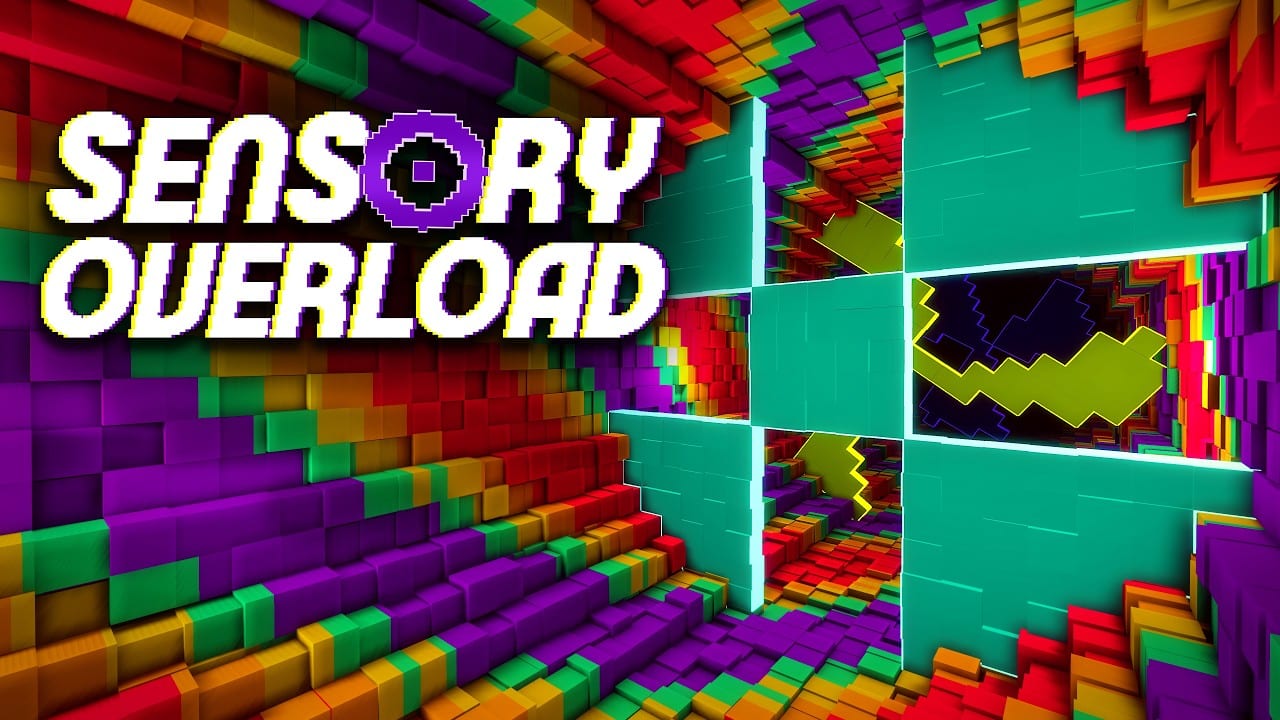
Sensory Overload is visually intense but comparatively light on storage. Still, hitching and unstable framerates can manufacture fake difficulty and extra nausea. Use this requirements page before blaming your hands.
Figures below reflect Steam listing messaging for the upcoming release. Always re-check the Steam store page if numbers update.
Windows — minimum
- OS: Windows 10 64-bit
- CPU: Quad-core 64-bit, ~2.5 GHz (e.g. Intel Core i5-6500 / AMD Ryzen 3 1200)
- RAM: 1024 MB
- GPU: Vulkan 1.0 support with ~2 GB VRAM (e.g. GTX 750 Ti / RX 460 / Intel Iris Xe)
- Storage: 500 MB
- Notes: 64-bit only; older cards may use compatibility mode
Windows — recommended
- OS: Windows 10 64-bit or Windows 11
- CPU: Quad-core ~3.0 GHz (e.g. i5-8400 / Ryzen 5 2600)
- RAM: 2048 MB
- GPU: Dedicated GPU with ~4 GB VRAM and Vulkan 1.0 (e.g. GTX 1060 / RX 580)
- Storage: 500 MB
- Goal: higher visual quality and stable 60+ FPS at 1080p
SteamOS / Linux — minimum
- OS: SteamOS 3.0 / Ubuntu 20.04 or newer (64-bit)
- CPU/RAM/GPU guidance mirrors the Windows minimum class, including Steam Deck APU examples
- Vulkan required; compatibility mode may exist for older GPUs
SteamOS / Linux — recommended
- SteamOS 3.5+ / Ubuntu 22.04+
- Stronger quad-core and 4 GB VRAM class GPU
Stability tips that affect skill
- Cap FPS to a value you actually hold
- Update GPU drivers before August 20, 2026
- Close overlays that hitch mid-run
- Verify Disk integrity on Steam if assets fail
- On Deck, see Steam Deck Guide
Connecting requirements to play plans
If you only meet minimums, prefer Normal and Zen while you evaluate heat and frame pacing before serious Ranked. Comfort interacts with performance — read Motion Sickness Tips.
Hardware will not grant flow state. Unstable hardware can deny it.
Interpreting minimum versus recommended
Minimum means “it runs.” Recommended means “it can hold the readability you need for fair practice.” If you sit on minimum hardware, lower expectations for stacked chaos sessions and prioritize frame caps. Skill grows best on stable perception.
Requirements versus fairness
Stable frames protect the fairness thesis. Hitchy frames create fake “unfair” deaths that the point collider did not cause. If older GPUs previously hid obstacles, update the demo and confirm Compatibility renderer notes on Patch Notes.
Display checklist
- Native resolution, correct aspect (ultrawide supported in demo patches)
- Fullscreen sized correctly
- VSync/FPS cap chosen for stability
- Overlays minimized during dense gates
After you pass the spec sheet
Hardware is the floor. Literacy is the climb. Do not skip the floor on launch night — August 20, 2026 traffic will not make unstable machines kinder.
Linux and Deck notes
Listings include Linux via Vulkan. Expect to verify drivers and fullscreen behavior the same way Windows players do after patches. If geometry disappears, prioritize Compatibility renderer guidance from Patch Notes before rewriting binds. Low disk footprint does not mean low attention to stability — Sensory Overload is cheap to install and expensive to misconfigure on launch night.
Re-check requirements after GPU driver updates and after every major demo patch. Yesterday’s stable build is not a promise forever.
Stable frames are part of fairness, not a luxury setting for perfectionists.
Frequently Asked Questions
Quick answers for demo and launch questions.
How big is the install?
Listings cite about 500 MB available space — tiny compared to most modern releases.
Is Vulkan mandatory?
Steam notes emphasize Vulkan support, with compatibility pathways mentioned for older cards.
Can a Steam Deck run it?
Developer messaging says Deck is supported and tested. Use our Deck guide for practical caps.